


The days of on-prem server environments, primary Domain Controllers, and Microsoft Exchange server clusters are starting to become a relic of the past. Everyone is jumping on the cloud computing bandwagon, and for good reasons. It’s flexible, scalable, and often more secure. But there’s a catch to that claim: cloud platforms like the Microsoft Cloud are only as secure as the configurations behind the scenes.
So, you may be thinking, “Isn’t Azure more secure than our old hardware-based windows environment?” The short answer? It depends.

Let’s break it down. For example, if your Microsoft 365 tenant were a house, most people remember to lock the front door (passwords)…but many people might forget to lock the side door (legacy protocols), or the flappy doggie door outside on the deck (unrestricted external sharing), and the upstairs window with the broken latch (unused global admin accounts). The real risk isn’t the package delivery guy; it is all those open methods to get inside.
We can fix that. Below is a clear, real-world checklist of best practices our team deploys every day at Arctic IT to keep our clients’ Microsoft 365 (M365) tenants secure without turning their users into digital contortionists. This one is for the IT leaders, admins, and the “accidental” sysadmins who inherited their Microsoft cloud environment and want to implement security without all the headaches.
1) Start with Identity: MFA, Conditional Access, and the death of “password-only”
In M365, identity is the new perimeter. Many attacks start with stolen credentials. Whether it’s a targeted phishing attack, password spraying, or brute force attacks, it comes down to account compromise. Passwords alone are not enough. Multifactor Authentication (MFA) and Conditional Access close the gaps that attackers love to exploit.
Identity management checklist:
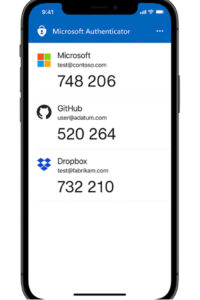
- Enforce MFA for all users and make Microsoft Authenticator the standard. While Microsoft now enables MFA by default for many new tenants, organizations need to ensure it is configured properly, enforced throughout the entire environment, and paired with conditional access to full protect user identity.
- Start with Security Defaults or custom Conditional Access policies: kill legacy auth, require MFA outside the network, and lock admin portals to compliant devices.
- Disable all old legacy protocols such as (POP/IMAP/SMTP AUTH that bypass MFA and have been known to be common attack vectors.
- Protect privileged roles with Privileged Identity Management (PIM): time-bound, approval-based elevation, and access reviews.
Pro tip: Create a “Break Glass” cloud-only account with a strong, unique password. Exclude the account from Conditional Access requirements so you can get in during an emergency and store the password in a safe space like it’s a crown jewel. An encrypted password vault is ideal (not a sticky note).
2) Embrace Zero Trust across your Microsoft cloud environment
Zero Trust isn’t a product: it’s a security posture. You should treat Zero Trust like a healthy lifestyle change for the whole organization. The new security mantra should be “Never trust, always verify” across all users, devices, and sessions.
Zero Trust architecture checklist:
- Enable MFA for all accounts, especially admin accounts (as previously mentioned), and require MFA for risky sign-ins and sensitive apps such as email and SharePoint.
- For privileged accounts, to reiterate, use Privileged Identity Management (PIM) for just-in-time admin roles and segment admin duties. Make it best practice to avoid the “Global Admin for Everything” type of behavior.
- Require compliant or hybrid-joined devices for sensitive apps. This would mean that all devices need to be fully patched, encrypted, and have up to date antivirus installed on the machine. Hybrid-joined domain devices need to also be registered in Azure AD.
- Use Defender for Cloud Apps to enforce session controls on high-risk actions, such as downloading or uploading files in SharePoint. You can configure policies to block downloads from unmanaged devices, restrict copy/paste functionality, and even disable the printing function.
- Implement threat protection by enabling Microsoft Defender for Office 365 (Safe Links, Safe Attachments, anti-phishing) and Microsoft Defender for Endpoint to secure email, collaboration tools, and devices against advanced threats. More on that below.
3) Classify and protect data in the cloud with Microsoft Purview
You can’t protect what you haven’t labeled. Classify and protect data using Microsoft Purview Sensitivity Labels. The labels travel with the data, whether in email, SharePoint, OneDrive, or exported files, ensuring consistent protection and compliance wherever the data goes.
Microsoft Purview checklist:
- Define your organization’s sensitivity labels, such as Public, Internal, Confidential, or Proprietary. Once you have the labels identified, you can configure policies that enforce encryption, watermarking, and access controls.
- Configure auto-labeling for obvious patterns (PII, financials, health data).
- Publish labels to users inside Office apps with short, easy to understand tooltips so they will use them.
- Pair with Data Loss Prevention (DLP) policies to block or require justification for risky shares, print, or copying sensitive data to the clipboard.

Microsoft Purview Information Protection – Sensitivity labels dashboard preview
4) Strong governance on external sharing
Collaboration is the point of M365 and the broader Microsoft Cloud productivity suite, but most leaks come from an “oops” situation, not from nation-state attacks. A common scenario is accidental oversharing, such as sending a link with “Anyone” access or sharing sensitive files outside the organization. These might seem harmless but can create a serious risk.
Data governance checklist:
- Set tenant-wide defaults to “People in your organization” and allow external sharing only on approved sites or Teams.
- Favor “Specific people” links over “Anyone with the link.”
- Use Access Reviews for guest accounts and stale Microsoft 365 Groups/Teams.
- Enable expiration for guest access and external sharing links.
5) Defend endpoints, email, and apps with the Defender family
Phishing and endpoint compromise is the most common entry point for attackers. Unfortunately, the end user is the weakest link in the security chain, and a single click on an unpatched device can open the door to ransomware, data theft, and business disruption. The Defender suite provides protection across identities, devices, cloud apps, and the entire Microsoft Cloud security stack. It’s designed to help you detect, prevent, and respond before the threat spreads.
Defender tools checklist:
- Within the Defender for Office 365 configuration settings (noted above as part of a Zero Trust strategy), enable Safe Links, Safe Attachments, anti-phish policies, and enable the user-report add-ins.
- Defender for Endpoint: For all onboard devices, use attack surface reduction rules, block untrusted macros, and turn on tamper protection.
- Defender for Cloud Apps: Enable the configuration to detect impossible travel, OAuth app abuse, and risky downloads. Apply session policies for real-time controls.
6) Intune (Endpoint Manager)
A secure posture requires healthy, compliant devices. Intune lets you enforce baseline health and remediate drift. Setting rules that require endpoints to be up to date with the latest security patches and configurations can protect the environment, as well as the device.
Endpoint manager checklist:
- Define compliance policies (OS version, disk encryption, secure boot, antivirus) and enforce these policies to be followed on all devices on the network. Noncompliant devices are blocked from access until they meet the requirements.
- Use configuration profiles to standardize settings for things like BitLocker, firewall, browser hardening, and ensure that all devices meet the requirements. This will ensure consistency and reduce misconfigurations for devices in the environment.
- If you allow Bring Your Own Device (BYOD), apply App Protection Policies using Mobile Application Management (MAM) to separate corporate data from personal apps. This ensures sensitive information stays secure without requiring full device enrollment or control.
- Enforce Conditional Access so only compliant devices can access sensitive SaaS apps like Exchange Online, SharePoint, and Teams.
7) Least privilege access (the unglamorous MVP)
Over-permissioned accounts and standing admin rights make attackers’ lives easier, especially in large Microsoft Cloud tenant environments. Reducing unnecessary privileges limits the blast radius of a compromise and can strengthen the Zero Trust posture.
Least privilege access checklist:
- Remove local admin rights from user devices unless absolutely necessary.
- Apply least privilege everywhere for both standard users and admin roles.
- Because it is so important to note again: Use Privileged Identity Management (PIM) for just-in-time elevation instead of permanent admin roles.
- Regularly review and remove stale accounts, unused roles, and excessive permissions to eliminate rogue accounts and privilege creep.
8) Tenant hardening essentials
Misconfigured tenants can be goldmine for attackers. Without hardening, attackers are free to exploit weak spots in the environment that can be used to exfiltrate data, hijack mailboxes, or escalate privileges. A hardened tenant will enforce modern authentication, limit risky behaviors, and ensure visibility and control across your environment.
Hardening checklist:
- Turn off SMTP AUTH unless absolutely needed; if needed, scope it tightly for specific accounts.
- Block basic auth for Exchange protocols to enforce modern authentication and MFA.
- Restrict Power Automate/Power Apps data exfiltration using Data Loss Prevention (DLP) and tenant isolation policies.
- Limit self-service purchase and unmanaged Azure AD tenant creation to reduce shadow IT risk.
- Enable mailbox auditing by default and regularly review high-risk mailbox rules for things like auto-forwarding to external domains.
- Enable security defaults or baseline Conditional Access policies if custom policies aren’t in place.
- Configure alerting for risky sign-ins and impossible travel in Azure AD Identity Protection.
9) Monitor continuously: Secure Score, audit logs, and SIEM
Continuous monitoring ensures you detect anomalies, misconfigurations, and suspicious activity before they become breaches. View this activity as the feedback loop that keeps your Zero Trust posture effective, because what you don’t see can hurt you.
Continuous monitoring checklist:
- Track your Microsoft Secure Score on a weekly basis. You can treat it like a backlog of things that need to be adjusted, not a vanity metric.
- Stream unified audit logs and Defender incidents into Microsoft Sentinel (or your SIEM) for correlation and alerting.
- Write automation playbooks for noisy-but-important tasks such as auto-disable risky users, revoke refresh tokens, quarantine emails, and lock devices.
- Enable alerting for high-risk activities like mass file downloads, privilege escalations, and mailbox forwarding rules.
- Monitor the Conditional Access sign-in logs for patterns that show repeated failures or bypass attempts.
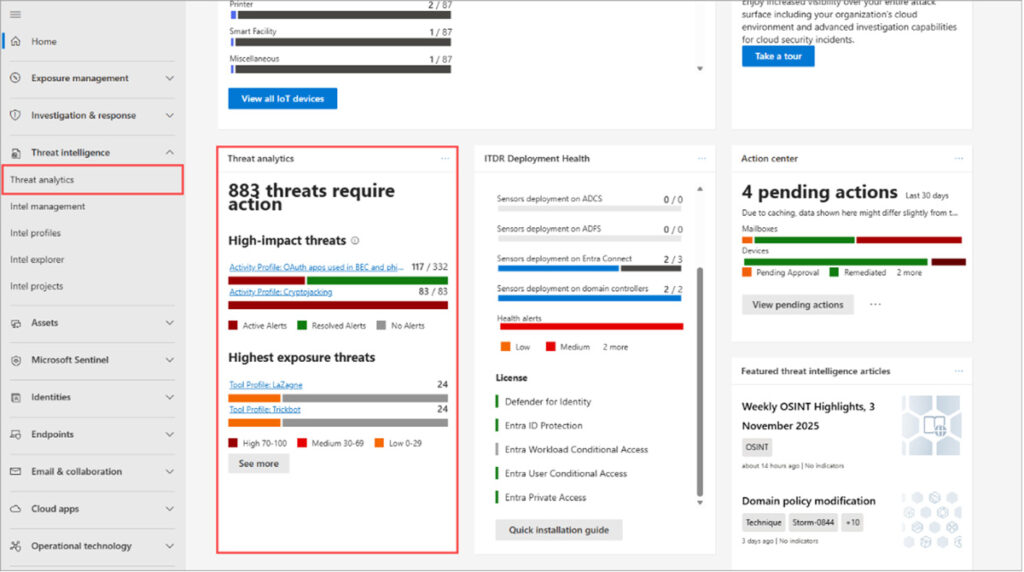
Microsoft 365 Threat Intelligence – Threat analytics dashboard preview
10) Security Awareness: Train Your Team to Be Your First Line of Defense
It has been stated for years that the end user is the weakest link in an IT environment. Users are the largest attack surface but can also be trained to be the best defense in your Microsoft Cloud security strategy. Human error accounts for most security incidents, and attackers love to prey on the end users because they are an easy target. By investing in continuous education and training, you can transform your team from a liability into a human firewall.
Security awareness training checklist:
- Regularly run phishing simulation campaigns and targeted micro-trainings. Keeping your userbase educated and engaged will pay dividends with identifying attacks.
- Teach your end users how to report suspicious emails (the Report Message add-in) and celebrate “good catches.” Your team will take great pride in being able to spot the bad guys.
- Rather than making configuration changes and letting users find out on their own, notify users of the changes being made and explain why controls exist. Transparency helps users understand why certain measures exist, even if they add friction, and builds trust in the process.
Incident response basics for Microsoft 365 (for when things go wrong)
We need to be real for a moment: Incidents will happen, even in mature Microsoft Cloud environments, and may happen more frequently than expected. When (not if) your environment experiences an incident, you will want to get ready to tackle the situation and remediate any issues as soon as possible.
Follow these steps to get back on track in record time:
- Contain: Stop the attacker immediately. Disable sign-in, revoke sessions, reset credentials, and require MFA re-registration.
- Scope: Understand the impact on your environment. Check sign-in logs, mailbox rules, OAuth grants, device timeline, and shared links.
- Eradicate: Remove the threat. Delete malicious rules/apps, clean endpoints, block senders, and purge compromised messages.
- Recover: Restore normal operations. Re-enable access, recover data if needed, and monitor for re-authentication attempts.
- Learn: Prevent déjà vu. If you see recurring patterns, add new Conditional Access rules or DLP conditions to close gaps.
- Prepare: Document your IR process with an Incident Response Plan (IRP) and test it (at least annually) with tabletop exercises. A rehearsed plan reduces chaos when the real thing happens.
Getting started with cloud security in Microsoft 365
Securing your Microsoft 365 environment is a journey of mastering the fundamentals and building from there. You need to crawl before you can run. Start by locking down identity, blocking legacy authentication, labeling your data, and monitoring continuously. As your team and processes mature, layer on additional controls to strengthen your security posture.
When you’re ready to pick up the pace, Arctic IT is here to help clear the path. As a dependable Microsoft Solutions Partner, we’ve helped companies of all sizes manage and protect their environment with our cloud-managed services for Microsoft 365. Connect with us today to get the conversation started. Run with us.

By Kevin Fassanella, Director of Security and Compliance for Arctic IT