

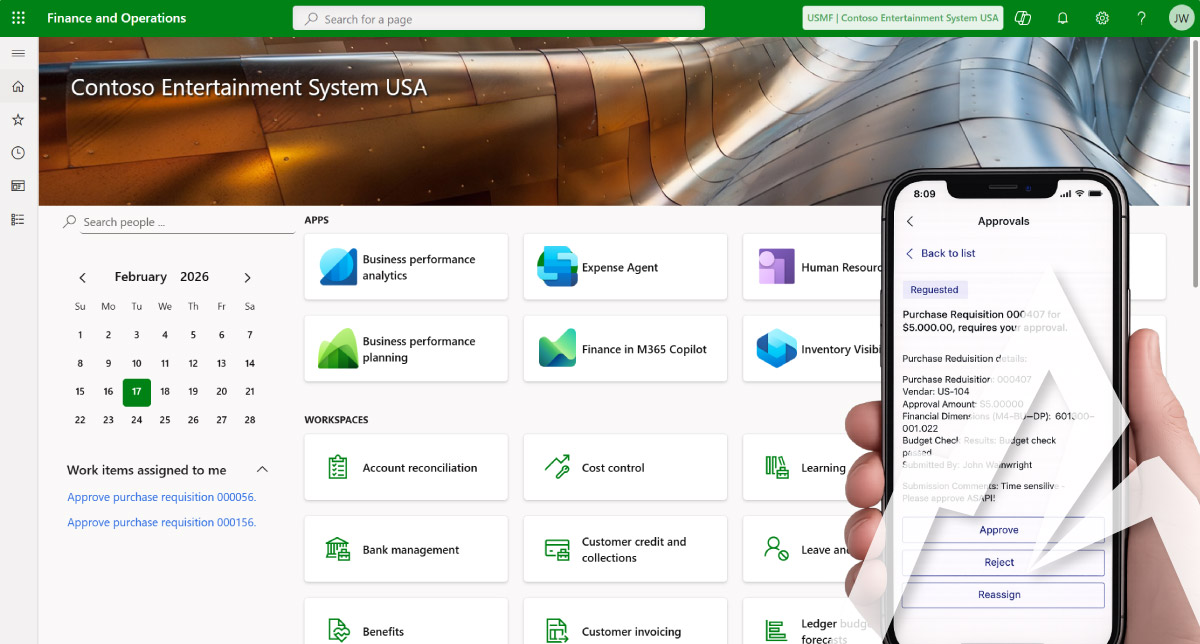
If you use Dynamics 365 Finance and Supply Chain Management (D365 F&SCM) daily, chances are you’re also using Microsoft Teams throughout your workday. What if you could interact with D365 F&SCM directly from within Teams?
The good news is…you can!
By utilizing the hundreds of existing Business Events in D365 F&SCM, creative interaction with Microsoft Teams is quick, simple, and can afford many time-saving conveniences to the user experience.
Dynamic D365 F&SCM Workflow Approvals in Teams & Email
One of the most common uses is to enable approval of D365 F&SCM workflows directly from within Teams, negating the need to go into Dynamics at all.
Through a fairly simple Power Automate Flow, the data from the Business Event is sent to the Microsoft Teams Approvals app. The workflow can then be reviewed and approved directly from the Teams desktop or mobile app.
The goal of the Power Automate Flow is to send key information the user needs to approve the item without leaving Teams. The Flow relays all the dynamic data from the placeholders within the workflow configuration, and a link to the item is included right in the Teams notification.
Anything you can set a traditional notification placeholder for – you can now send to Teams. Common examples include:
- Customer or vendor information
- Financial dimensions
- Line-item information, whether or not the item passed budget check
- The submitting user’s comments
Most workflows typically have hundreds of individual field placeholders available.
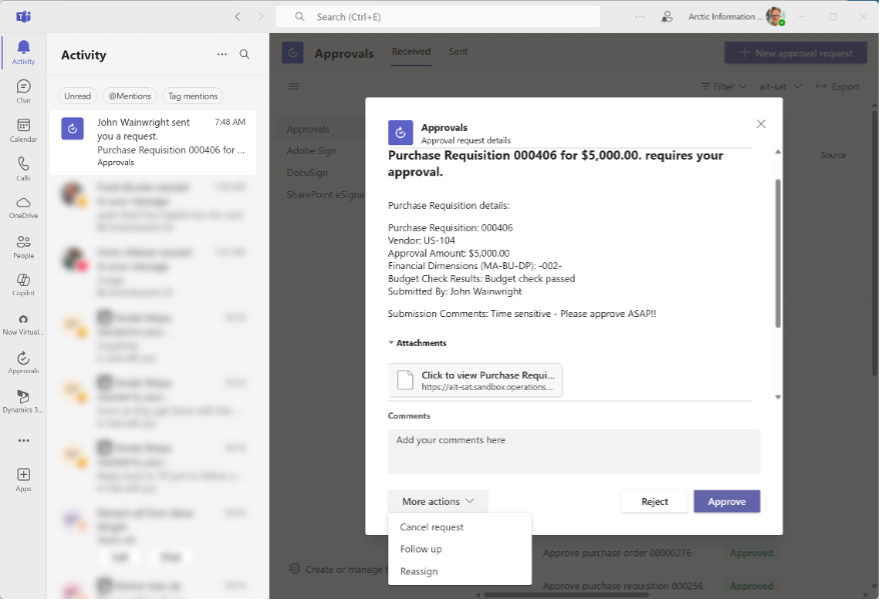
Microsoft Teams Approvals App Preview
The user can then approve, reject, reassign, or perform any other actions allowed on that workflow directly from within Teams.
Additionally, Power Automate will send an email with Approve/Reject buttons right in the email. The user can supply comments and ‘Approve’ directly from Outlook without ever going into D365. (This replaces the less functional emails currently being sent by D365.)
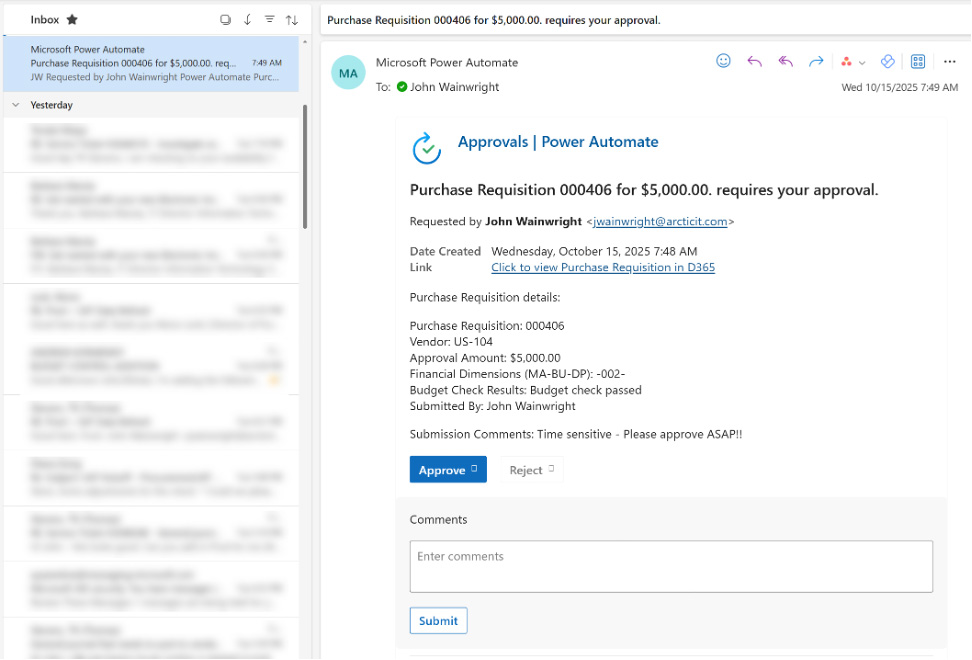
Power Automate Approval Email Preview
Once the workflow is fully approved (based on the criteria: single approver, majority approver, etc.), the original Teams notification is auto-updated to ‘completed’. Additionally, the same email notification in my Outlook inbox self-updates to ‘completed’.
This is important, as a given workflow may send notifications to several people for approval. This feature updates notifications for all recipients dynamically by displaying the current status in real time to all recipients and whether another approver has taken action. It also prevents them from trying to approve something that someone else already approved.
Because the original email and Teams notifications are dynamically updated, no secondary update email/notification is required.
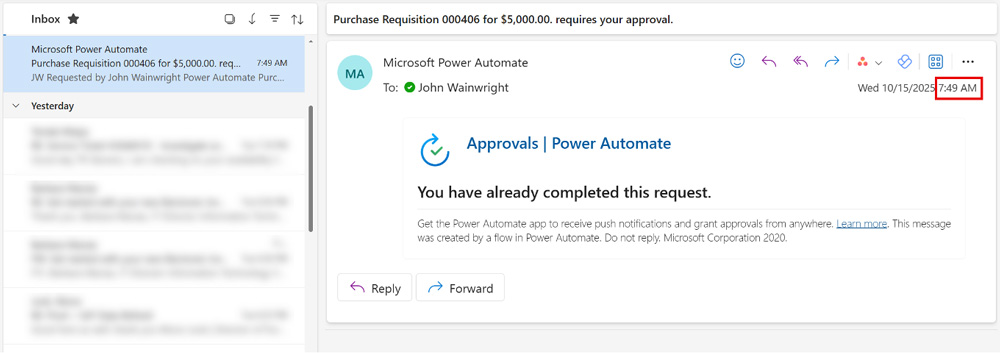
Power Automate Email Dynamically Updates to ‘Completed’ in Real Time
If a workflow is approved from within Teams or via email, the history notes will show ‘External Workitem Completion’. Additionally, any comments left by the approver will carry through to the workflow history.
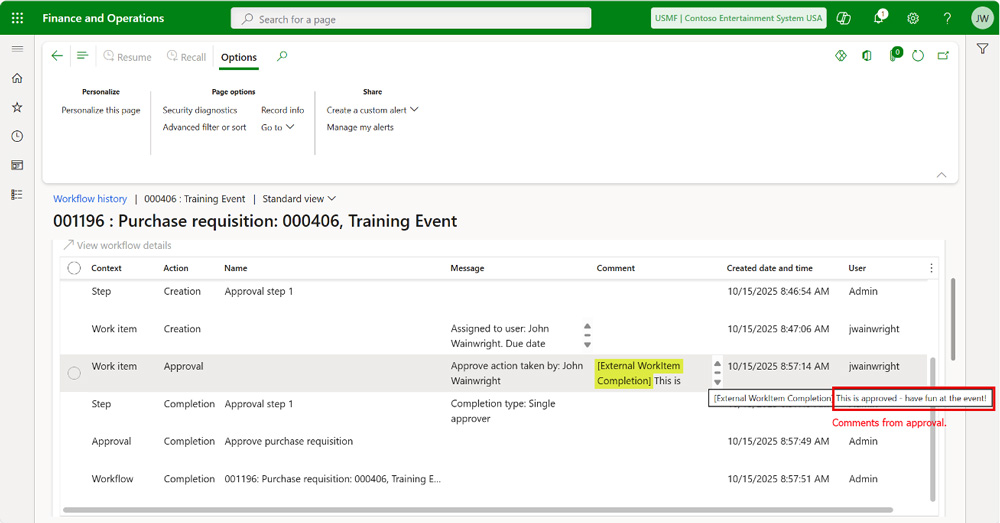
Approved Work Item Example in Dynamics 365 Finance
This, of course, also works seamlessly with mobile application versions of both Teams and Outlook as well.
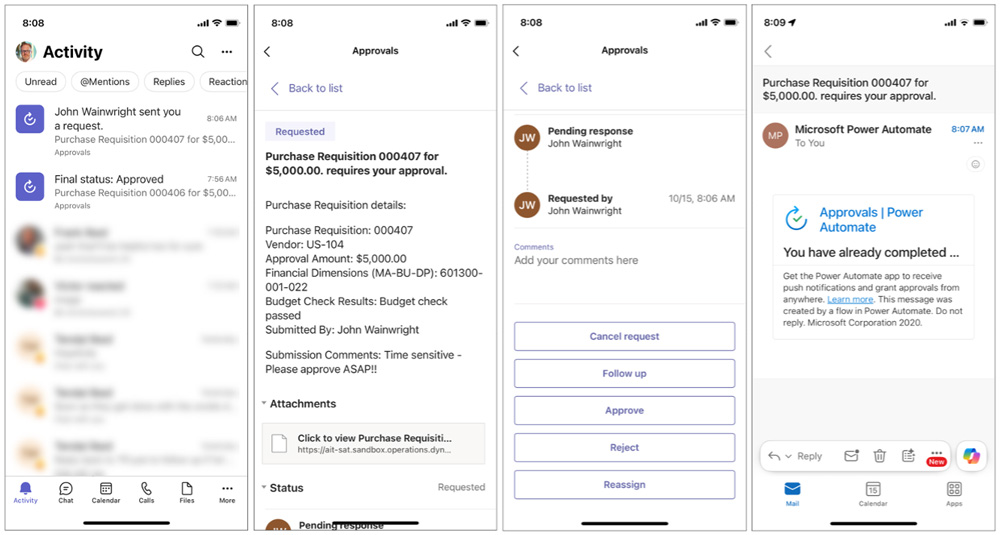
Mobile Preview for Teams and Outlook Approvals
Endless Teams Integration Possibilities with Notifications
What’s more, interaction with Teams isn’t limited to just workflows! Even simple notifications can be made more useful and convenient via interaction with Teams.
Anything with a Business Event can be consumed and transmitted to Teams by a Power Automate Flow. The most recent version of D365 F&SCM at the time of this article publishing (v10.0.46) has over 700 Business Events built in.
The silver bullet here is that System Alert has a Business Event. Most users already know that we can set a System Alert on pretty much anything, which means we can send a Teams notification on pretty much anything.
Below are just a few examples of how you can use this type of Flow connection to send a Teams notification to a person or channel. You can even configure it to start a group chat with a preset group of users.
- Send a Teams notification to a person or channel, upon a journal being Reported as Ready, for those journal names without a workflow.
- Send a notification to the AP Team Channel when a certain vendor’s aging reaches a preset threshold.
- Send a notification to the AR Team Channel when any customer’s credit limit is raised to a certain amount.
- Notify a specific user or channel anytime a PO is created over a certain amount, or containing specific line items.
- And anything else you can imagine.
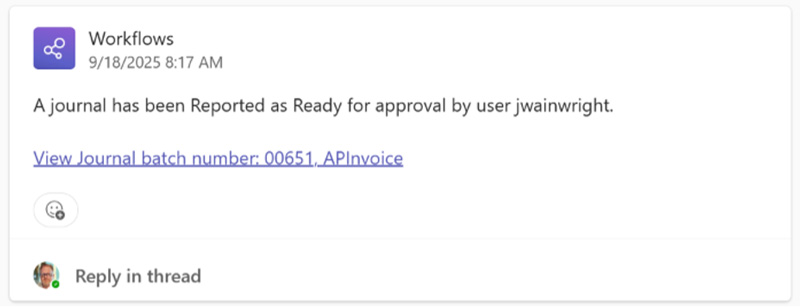
Teams Notification Example from Workflows
Workflow approvals and notifications are just two examples of the functionality that may be extended into Microsoft Teams – providing more effective communication between D365 F&SCM and your users. The only limit is your creativity.
Microsoft Dynamics 365 Finance and Supply Chain Management works where you work!
If you’re ready to extend D365 F&SCM with Teams but want help with configuring workflows, we can help. Arctic IT has over two decades of experience implementing and supporting Microsoft Dynamics financial systems. Connect with us today to get the conversation started.

By John Wainwright, Senior Client Services Consultant at Arctic IT