

When organizations begin working with Microsoft Dataverse, one of the first challenges they encounter is managing security. Questions around who can access which data, how to structure permissions, and how to do it all efficiently can become overwhelming, especially for IT teams unfamiliar with Power Platform environments.
While security roles and access levels often get the spotlight, the real key to managing Dataverse security at scale lies in something less discussed: teams. Not Microsoft Teams or Dataverse for Teams, but the original team concept built into Dataverse itself. When used correctly, especially in combination with Microsoft Entra ID, Dataverse teams can transform the way organizations manage access across business units.
Understanding the Core Challenge
In Dataverse, users must be assigned to a single business unit. This creates immediate limitations in environments where employees need to work across departments or share data with other areas of the organization. For example, someone assigned to the Finance business unit cannot easily access records owned by the Sales unit unless specific permissions or record-sharing arrangements are created.
Managing access on a user-by-user basis is time-consuming and increases the risk of errors. It’s not sustainable, especially as organizations grow their Power Platform footprint and deploy more apps, environments, and roles.
Teams in Dataverse
Teams in Dataverse allow administrators to group users based on shared characteristics such as job function, department, or location. That way, security roles can be assigned at the group level.
There are several types of Teams in Dataverse:
- Default Teams: Automatically created for each business unit. These are system-managed, and their membership cannot be edited.
- Access Teams: Used for record-level sharing. The team is automatically created for a record, and an access team template is used to set sharing permissions. While useful in specific scenarios, they can create performance issues in large systems due to the additional entries they generate in the Principal Object Access (POA) table.
- Owner Teams: These teams can own records and are assigned security roles. All members inherit record access through the team, making them especially useful for bypassing the one-business-unit limitation.
- Microsoft Entra ID Group Teams: A more recent and powerful option that links Azure Active Directory (now Entra ID) groups directly to Dataverse teams. These can be managed entirely from Entra ID and still grant access and security roles within Dataverse. There are two types of teams:
- Microsoft Entra ID Security Group
- Microsoft Entra ID Office Group
Why Entra ID Group Teams are the Favorable Option
Entra ID group teams are the shining star when it comes to security for Power Platform applications. They function like owner teams but shift user management outside of the Power Platform. IT administrators can assign users to security or Microsoft 365 groups directly in Entra ID (tools they’re already familiar with), and those memberships will automatically sync with the associated Dataverse team.
This approach allows centralized control over security and licensing, minimizes manual configuration, and supports both assigned and dynamic groups. Dynamic groups, in particular, allow automatic user assignment based on attributes such as department or manager, eliminating the need for manual updates as team structures evolve.
Entra ID group teams are ideal for IT teams being asked to manage new Power Platform environments. Rather than learning a new security model, they can operate in a familiar environment while still applying proper Dataverse security.
Real-World Example: A Casino Resort with Multiple Departments
To demonstrate how Entra ID group teams work in a real-world scenario, let’s look at the example of a casino resort called the Power Platform Palace.
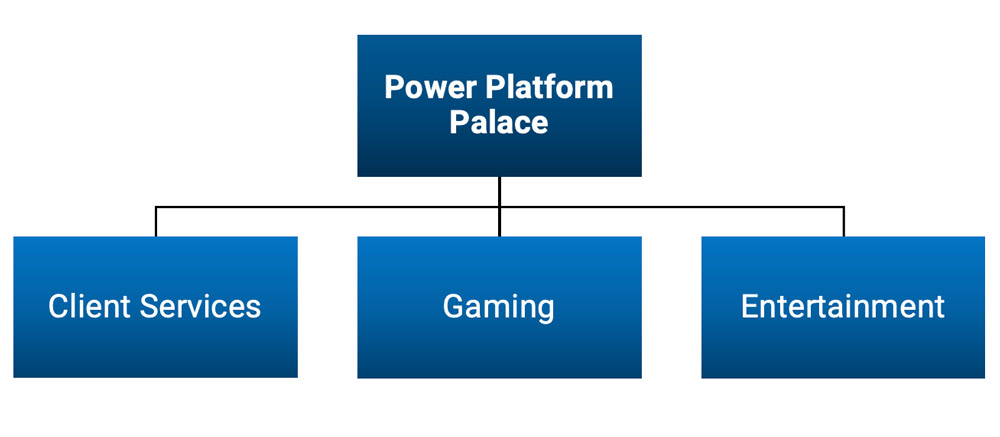
Example: A casino resort model
In this model, three business units (Client Services, Gaming, and Entertainment) each have their own data needs. For instance:
- Client Services manages contact records for guests staying at the resort.
- Gaming handles vendor information for equipment and services.
- Entertainment tracks performer contacts.
These business units are separated in the system, but sometimes users from Gaming and Entertainment need read-only access to guest contact records managed by Client Services.
To accomplish this, an owner team is created in the Client Services business unit with a read-only security role applied to the Contact table (specifically: Read, Append, and Append To). Then, users from the other business units are added to the team.
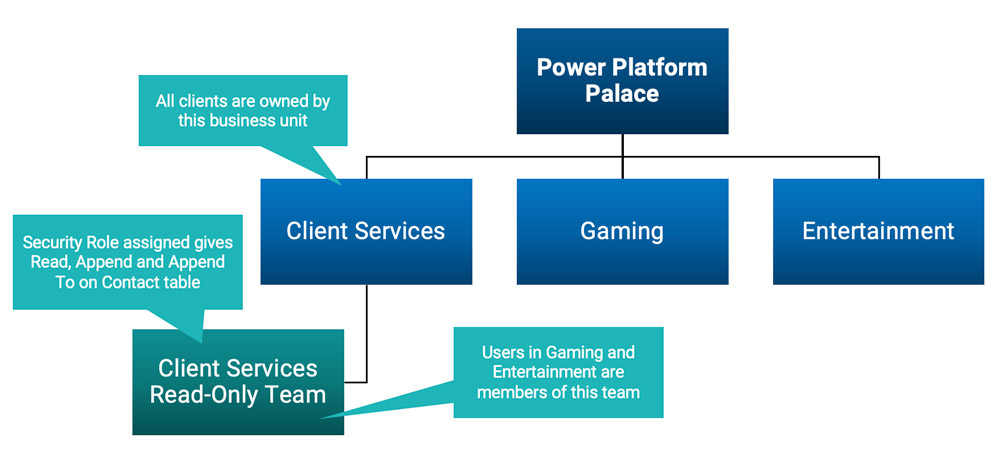
Security roles structure for the casino resort
Because team membership extends access across business unit boundaries, those users can now view – but not edit – Client Services contact records. This setup avoids duplicating records, excessive record sharing, or giving unnecessary access.
Setting Up an Entra ID Security Group Team
Here’s a quick step-by-step process for linking an Entra ID security group to a team in Dataverse:
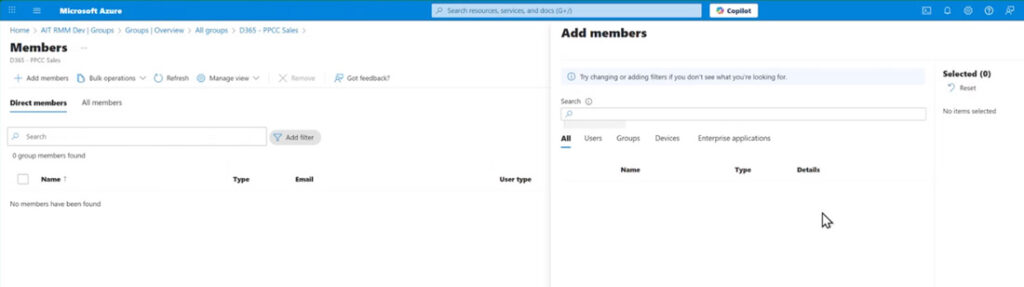
- Create the Group in Entra ID: A new security group is created in Microsoft Entra ID with assigned membership. This group can also be set as dynamic if desired.
- Create a New Team in Dataverse:
- Navigate to the environment via Power Platform Admin Center.
- Go to Settings → Users + Permissions → Teams.
- Create a new team, select “Microsoft Entra ID security group” as the team type, and associate it with the Entra group created earlier.
- Assign the appropriate business unit and security role(s).
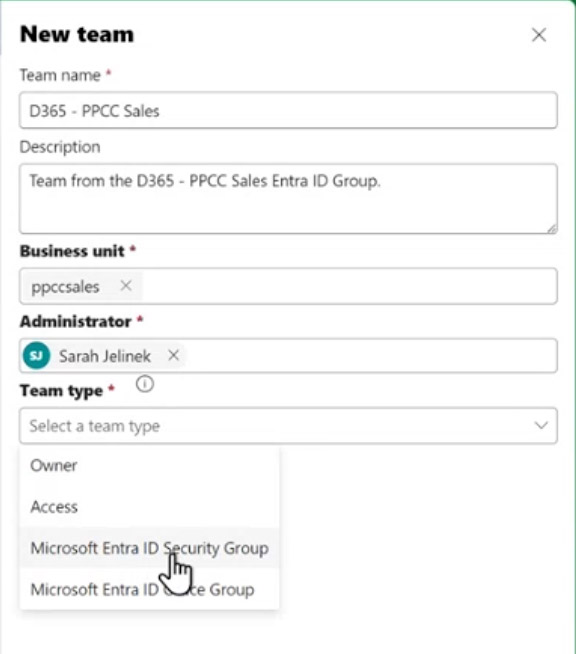
- Assign Members in Entra ID: Add users to the Entra group. They are now effectively members of the Dataverse team and inherit the assigned security roles.
In Summary, Use the Dataverse Security Tools that Scale
When it comes to security in Dataverse, simplicity and sustainability are the name of the game. Instead of managing hundreds of individual permissions, organizations can centralize their access strategy using teams in Dataverse and Entra ID. It aligns with how most IT departments already work and ensures a more manageable, auditable security structure as environments grow.
Security in Dataverse doesn’t have to be complex. With teams (and more importantly, Entra ID group teams), you have a framework that scales with your organization, adapts to real-world needs, and keeps administration in familiar territory.
If you’re looking for a partner who understands this inside and out – connect with us today. Arctic IT has experienced Microsoft certified consultants on staff who can support you in your Dataverse security journey.

By Sarah Jelinek, Microsoft MVP, Director Power Platform and Tribal Solutions at Arctic IT